 The Net Asset Value DeskTSP Intelligence Center
Put NAV Desk on your phone, in under a minute.
NAV Desk is a web app. You do not download it from an app store. You add it to your Home Screen straight from your browser, and from then on it opens with one tap, full screen, like any other app.
The app on your phone, light or dark.
These are real screens from NAV Desk, from a test account with example numbers. Overview, Holdings, Think Tank and Menu sit in the bar along the bottom; the button at the top left opens the same menu. Switch between light and dark with the moon or sun button at the top.
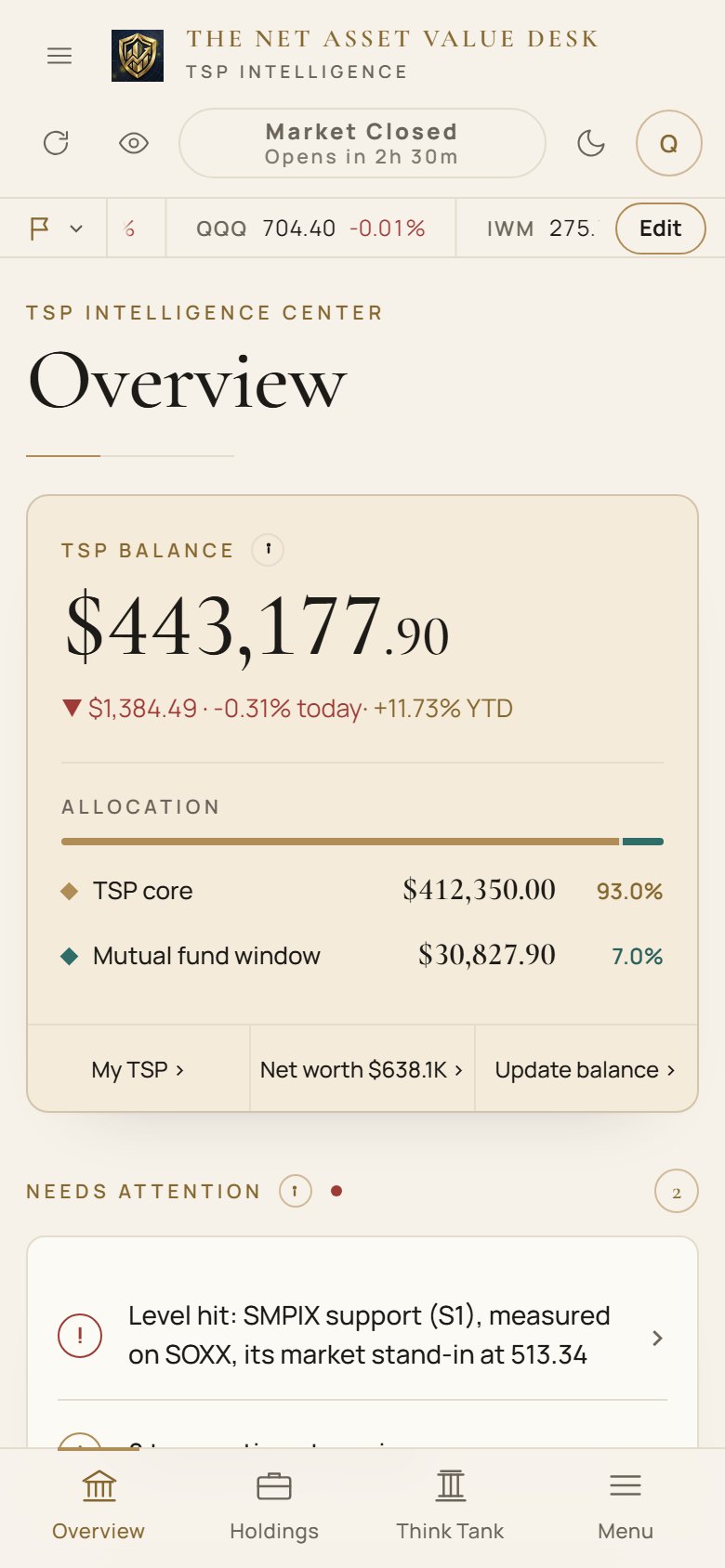
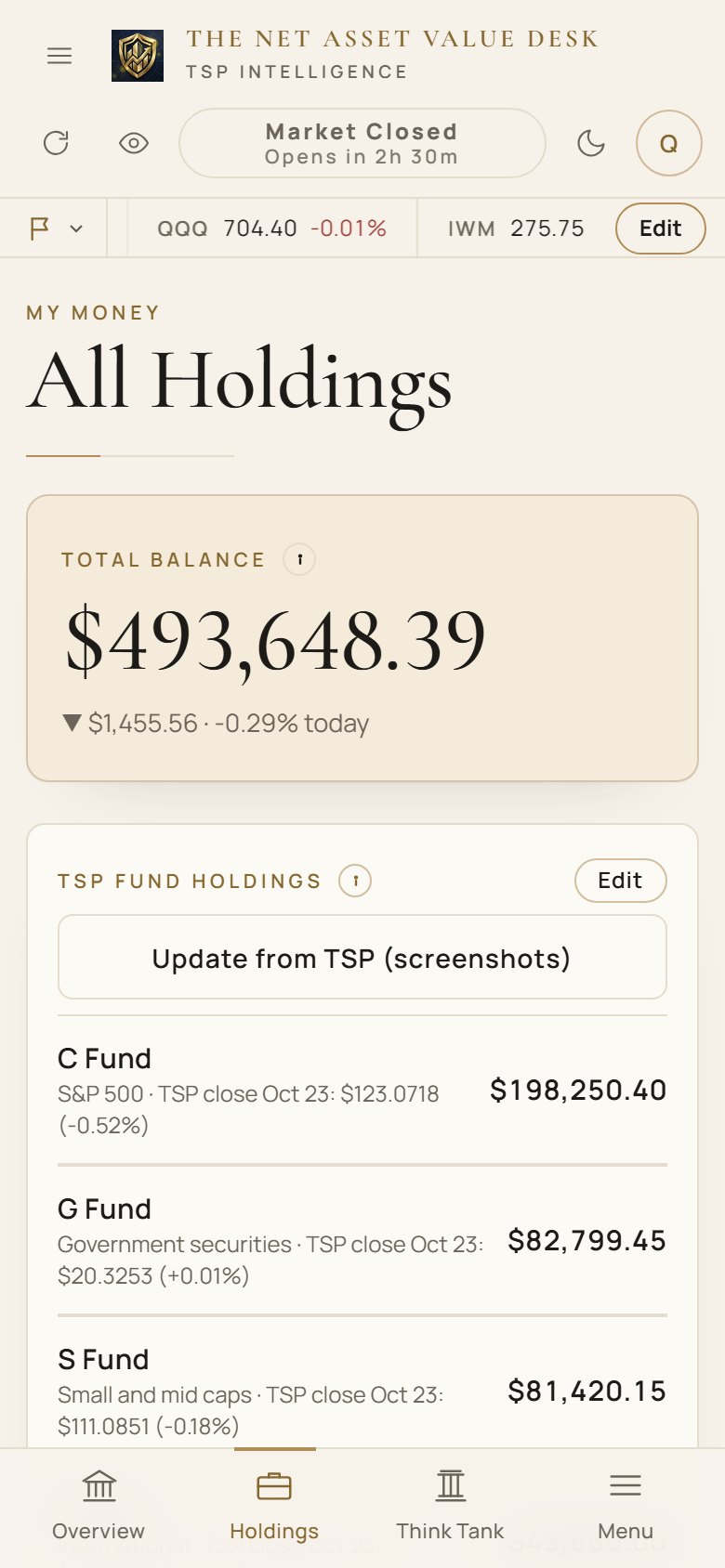
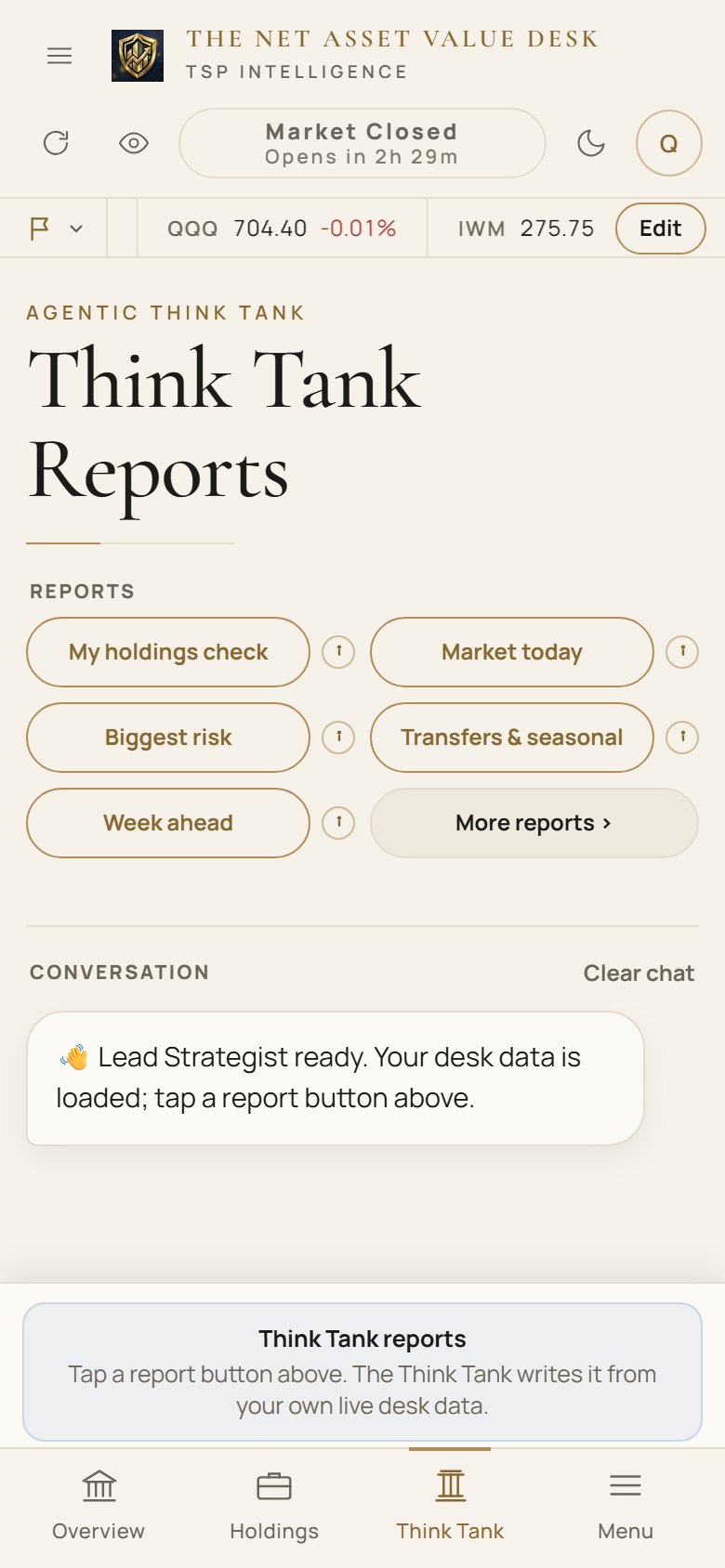
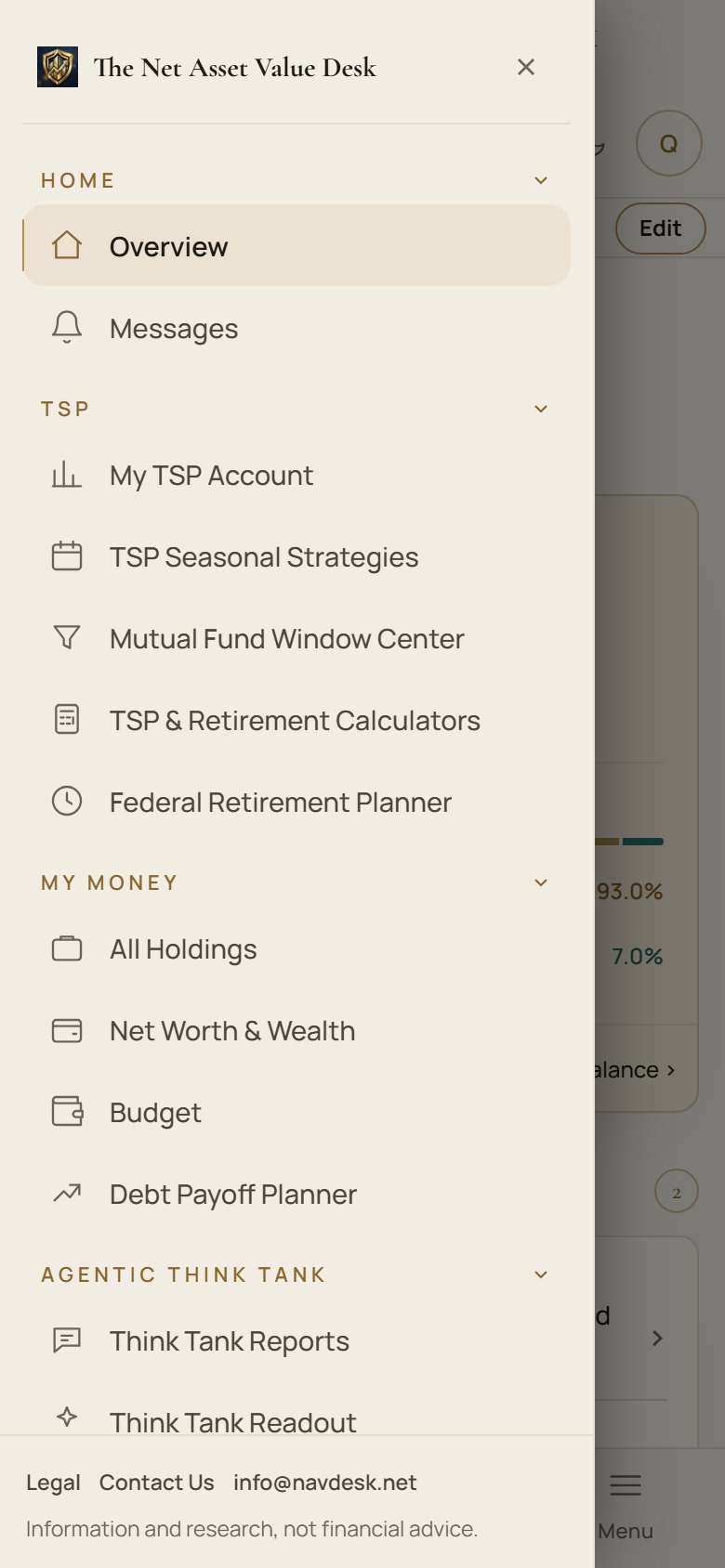
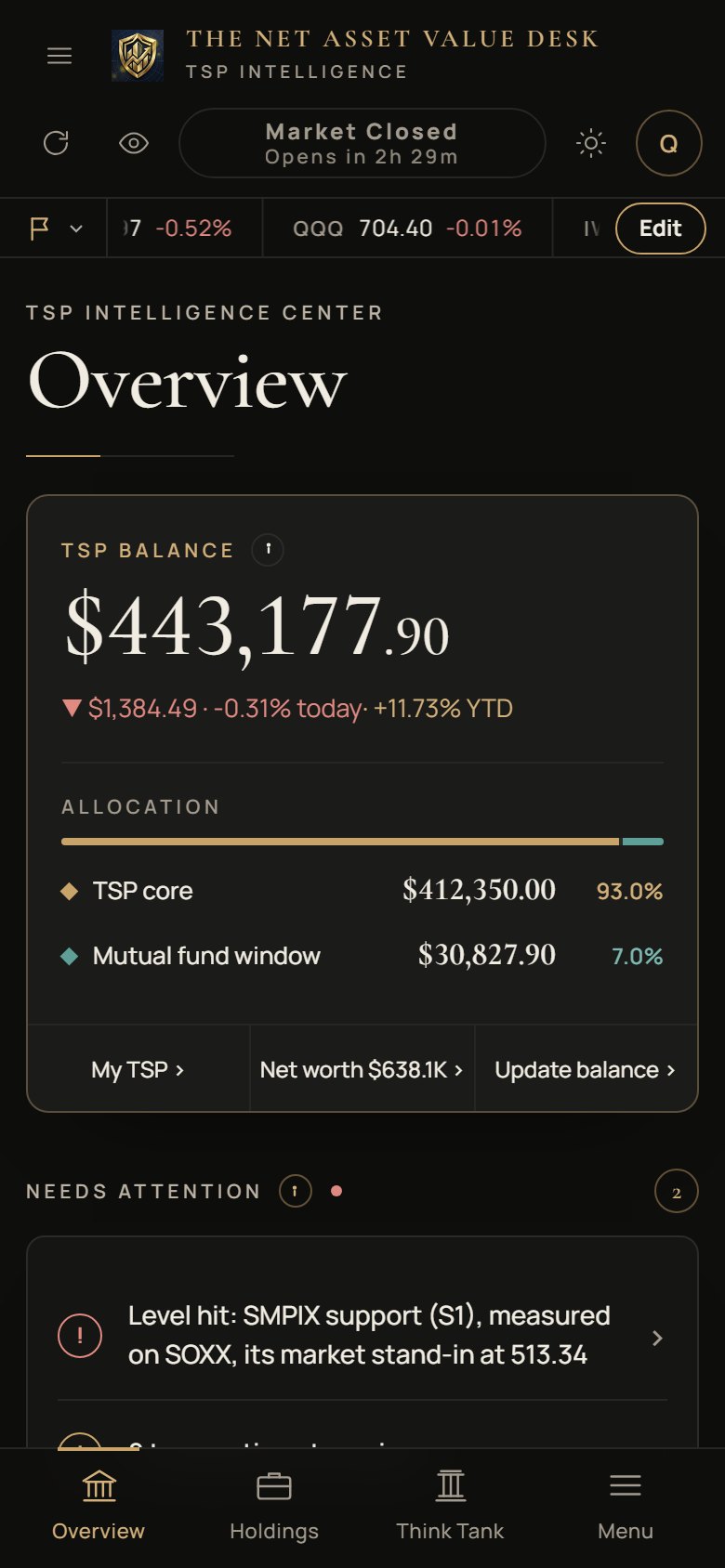
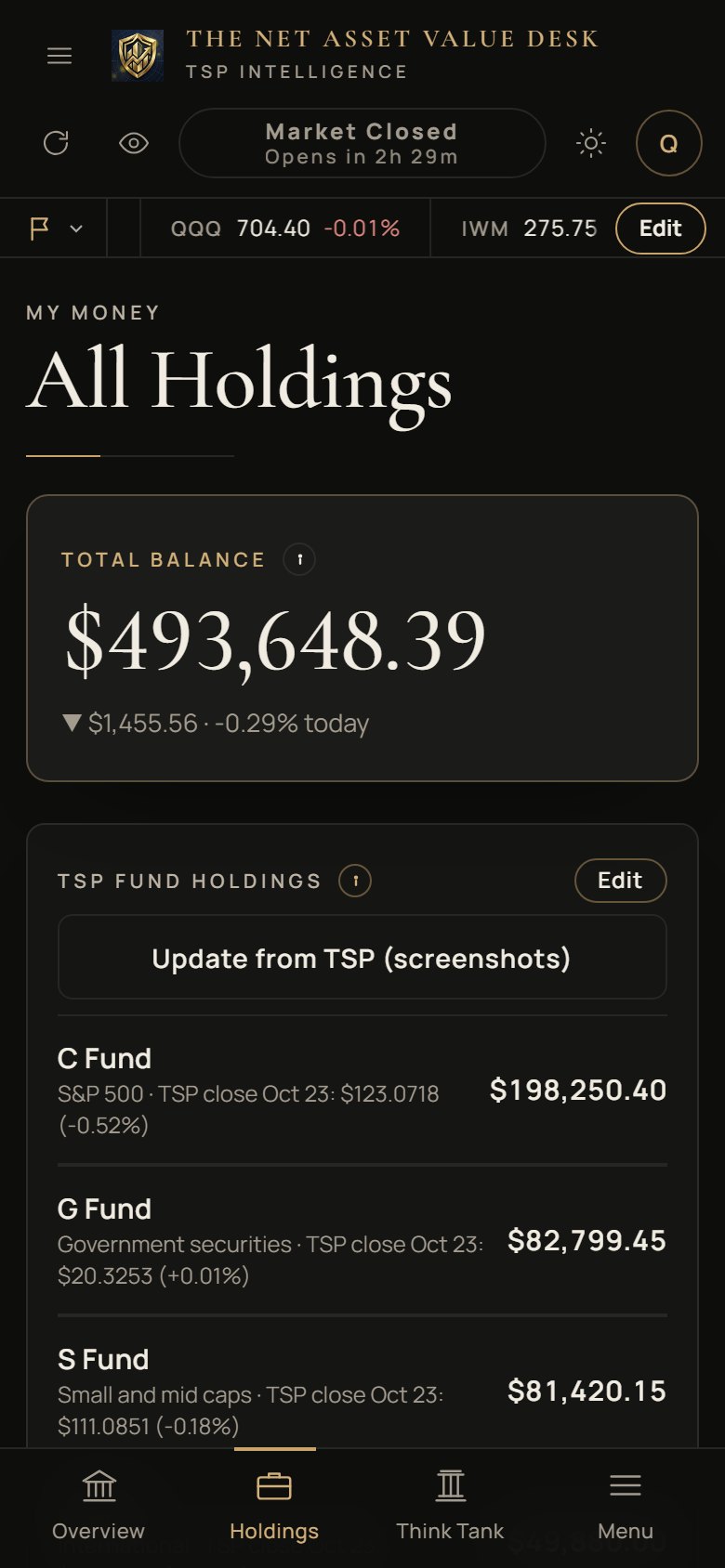
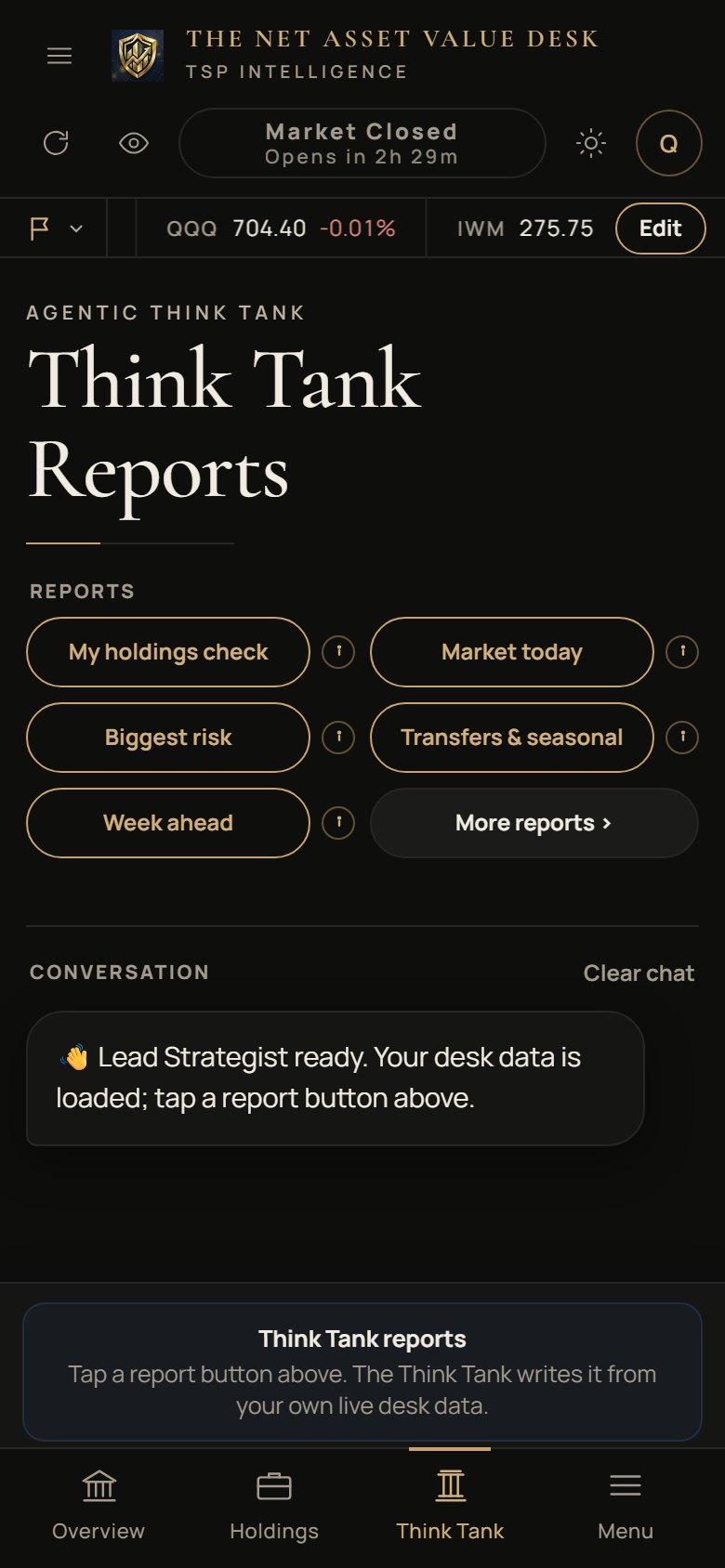
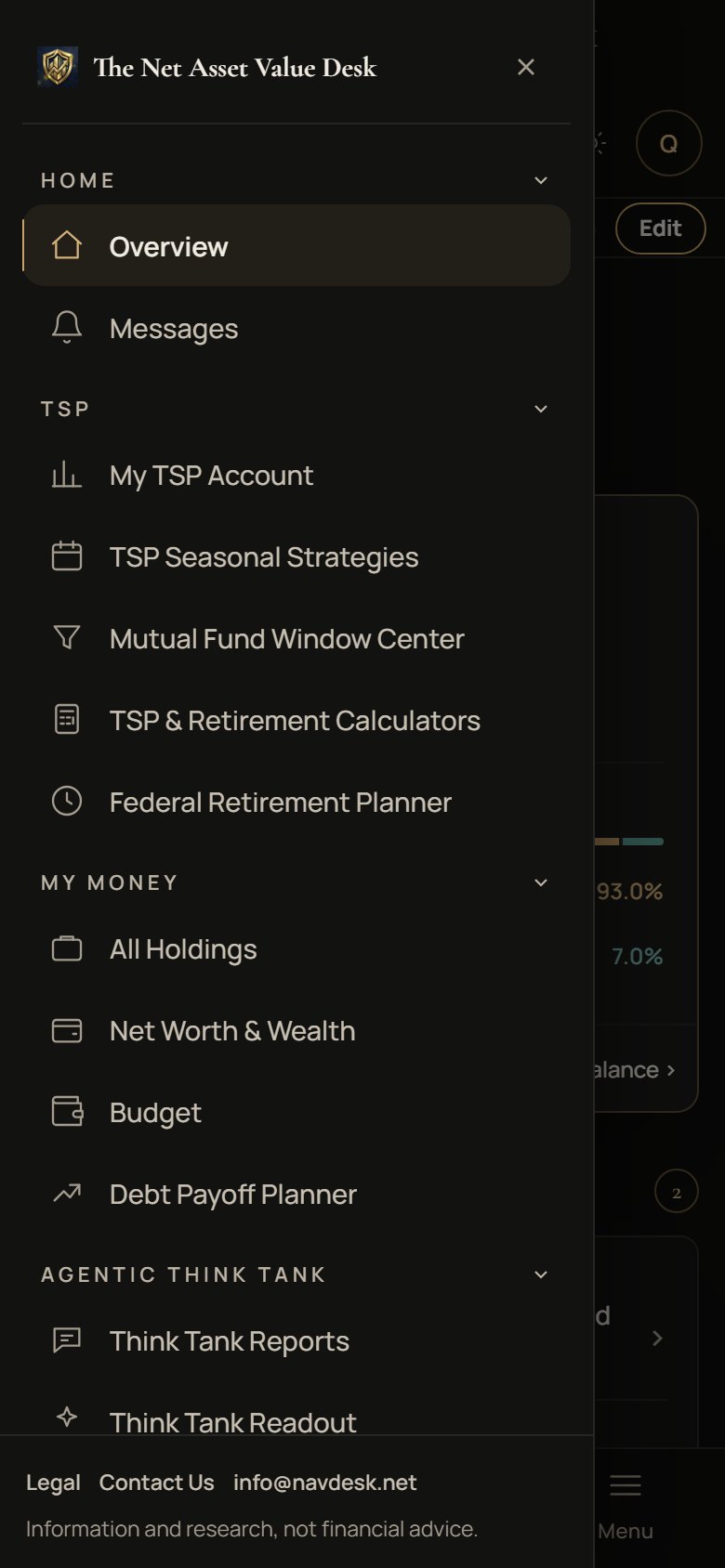
Example numbers from a test account, not a real member's balances.
Use Safari.
Safari is the blue compass icon that comes with every iPhone.
- 1Open navdesk.net in Safari and sign in.If you opened a link from an email or a text, see "If something is off" below.
- 2Tap the Share button It is the square with an arrow pointing up, in the bar at the bottom of the screen (at the top on an iPad).
- 3Scroll down the list and tap "Add to Home Screen".You may need to scroll past the row of app icons to find it.
- 4Tap "Add" in the top right corner.The NAV Desk icon now sits on your Home Screen.
- 5Close Safari and open NAV Desk from its new icon.Sign in once more. From now on, always open it from the icon.
Use Chrome.
Chrome is the red, yellow, green and blue circle that comes with most Android phones.
- 1Open navdesk.net in Chrome and sign in.Type it in yourself. A link tapped in an email or a text often opens a built-in browser that cannot install apps.
- 2Tap Chrome's menu It is the three dots next to the address bar: top right when the address bar is at the top, bottom right when you have moved the address bar to the bottom.
- 3Tap "Add to Home screen".On some phones the menu says "Install app" instead. Either one is right. You may need to scroll the menu down to see it.
- 4Choose "Install", not "Create shortcut".Chrome may ask which one you want. "Install" gives NAV Desk its own full-screen app and alerts. Then tap "Install" once more to confirm. It can take a few seconds for the icon to appear.
- 5Open NAV Desk from its new icon.It is on your Home screen and in your list of apps. Sign in once more, and when it asks to send notifications, tap "Allow" if you want alerts.
Optional, and just as quick.
NAV Desk works in any browser tab. If you would like it in its own window, do this in Chrome or Edge.
- 1Open navdesk.net and sign in.
- 2Open the browser menu and choose "Install NAV Desk".In Chrome it is under "Cast, save and share". In Edge it is under "Apps". Some versions also show an install icon at the right end of the address bar.
- 3Click "Install".NAV Desk opens in its own window and gets its own icon.
The usual snags.
That is it.
Open NAV Desk from its icon and carry on where you left off.
Open NAV DeskNAV Desk is an independent research and education tool. It is not affiliated with or endorsed by the TSP or the FRTIB.